
Roles and Teams
Give each bot an independent persona per group, and form a "team roster" during multi-bot collaboration. The command is /role.
This page covers two related but distinct capabilities:
/rolepersonas (one persona per bot, overridable per group — see below) and Role Switch (one bot owning multiple full roles, each with independent memory, switched by natural language per topic — an advanced feature).
Two-Tier Role (Persona)
- This-group Role has the highest priority: the same bot can have different personalities / responsibilities in different groups (e.g., a "strict reviewer" in group A, an "approachable Q&A assistant" in group B).
- Default role is the bot's cross-group default persona, which takes effect when no this-group Role is set.
- Role content is Markdown, injected into the CLI's system prompt, with a maximum of about 4096 bytes.
- Role resolution stays exactly: this-group role > default role > none.
Project-group coordinators separately receive Botmux's fixed <project_group_mode> protocol for durable project state and the pinned project card. It is not a third Role layer and does not follow the Role's every-turn/once-only injection setting: custom Roles define responsibilities, style, and domain boundaries, while the project protocol governs state lifecycle; both apply together.
Role Management also exposes a per-group, per-bot topic task reporting switch. It is off by default. When enabled, tasks dispatched by the current bot in that group still ask the assignee to run botmux report so completion is injected into the orchestrator's existing session, and additionally ask it to run botmux send --no-mention "subtask complete + output location/summary" in the topic where the task was received to leave a human-visible final-delivery copy, without mentioning the dispatching bot or opening another topic. --standby sends no task, so it receives no task instruction.
💡 The most intuitive way to set the default role is on the Bot Config page of
botmux dashboard— every bot card has a "Default Role" editor (it writes to the same config as/role team set; it's a bot-level global default persona, so it fits better under Bot Config). The Team panel only provides a read-only view entry; do all editing on the Bot Config page.
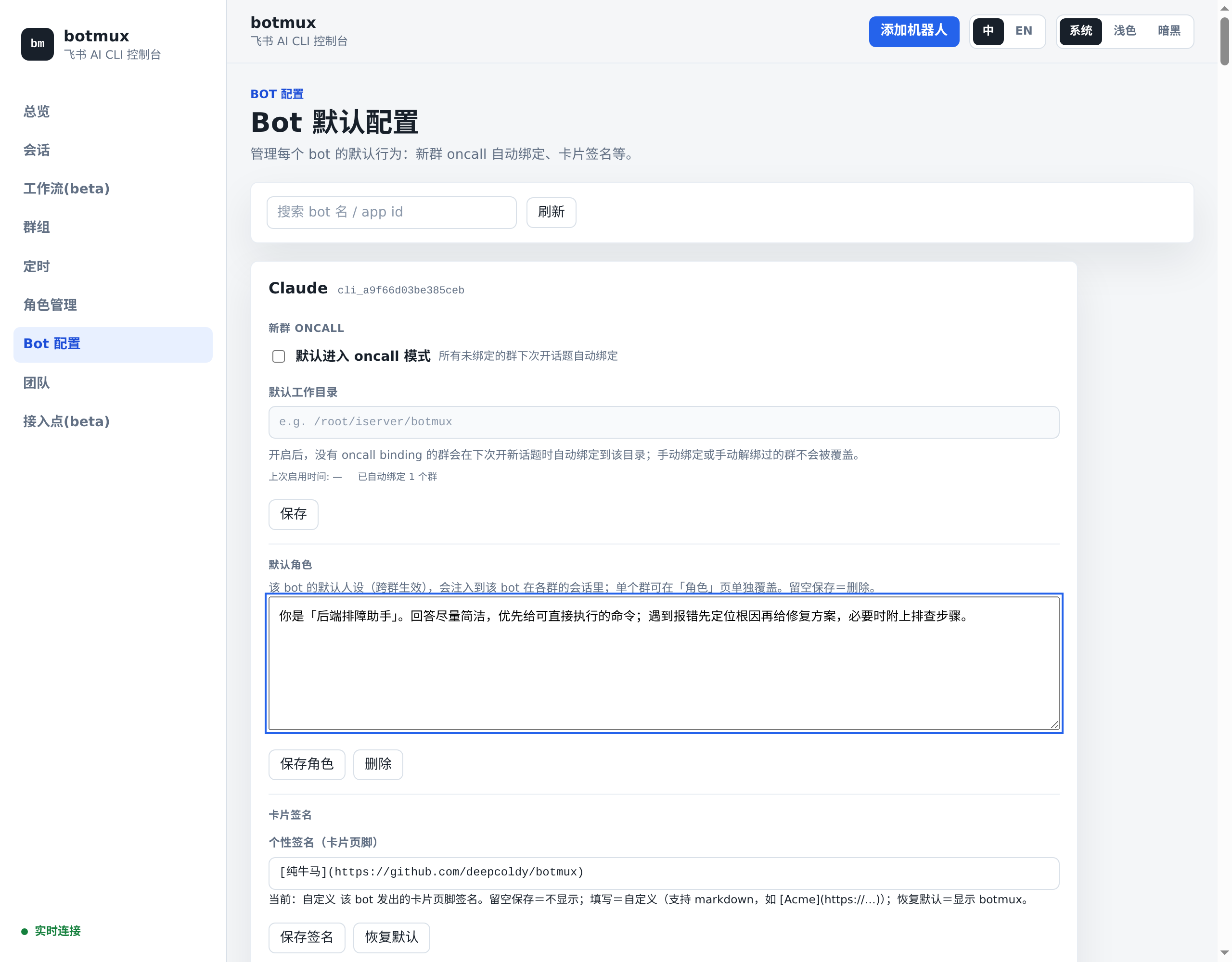
Role Profiles
A role profile is a reusable suite of bot-specific this-group roles. It is not a third runtime role layer, and it does not support template inheritance such as {{teamRole}}.
Typical commands:
How it works:
- Each bot owns only its own profile entry, keyed by its
larkAppId. savestores this bot's current effective role into the profile: this-group role first, then default role, otherwise it fails.applywrites this bot's profile entry into the current group's role file. If the current group already has a role, apply refuses unless--forceis passed.- Missing entries are safe: nothing is written, and the bot keeps falling back to its default role if one exists.
In the Dashboard, Role Profiles is a first-class entry:
- Open or create a profile from the left list.
- Check which bots already have entries and edit each bot's Markdown role.
- Pick a target group in the Apply panel, Preview Apply first, then Apply Profile when the overwrite behavior is clear.
- From the Groups page, click a group's "Apply Profile" action to open Role Profiles with that group preselected.
For new collaboration groups, create the group and bootstrap the profile in one command:
The creator applies its own entry directly, then posts @botB @botC /role profile apply collab-main --quiet inside the new group so peer bots apply their own local entries. No bot writes another daemon's role storage.
Capability Tags (Roster)
Capability tags show up in the "roster" — when botmux bots list lists the bots in the current group, each bot carries its cap one-liner summary, making it easy for you and other bots to know "who's good at what," so you can pick the right one during multi-bot collaboration / handoffs.
Relationship to Multi-Bot Collaboration
Role + capability tags are the infrastructure for multi-bot collaboration: giving each bot a clear identity and responsibilities makes the model less likely to get confused when @-mentioned in the group, with each one playing its part (e.g., one orchestrating, one doing implementation / review).
Team Collaboration (Cross-Deployment)
On the Team panel of botmux dashboard, you can invite someone else's deployment (a botmux that a colleague runs themselves) into the same team, so you can discover each other's bots and create groups across deployments to collaborate.
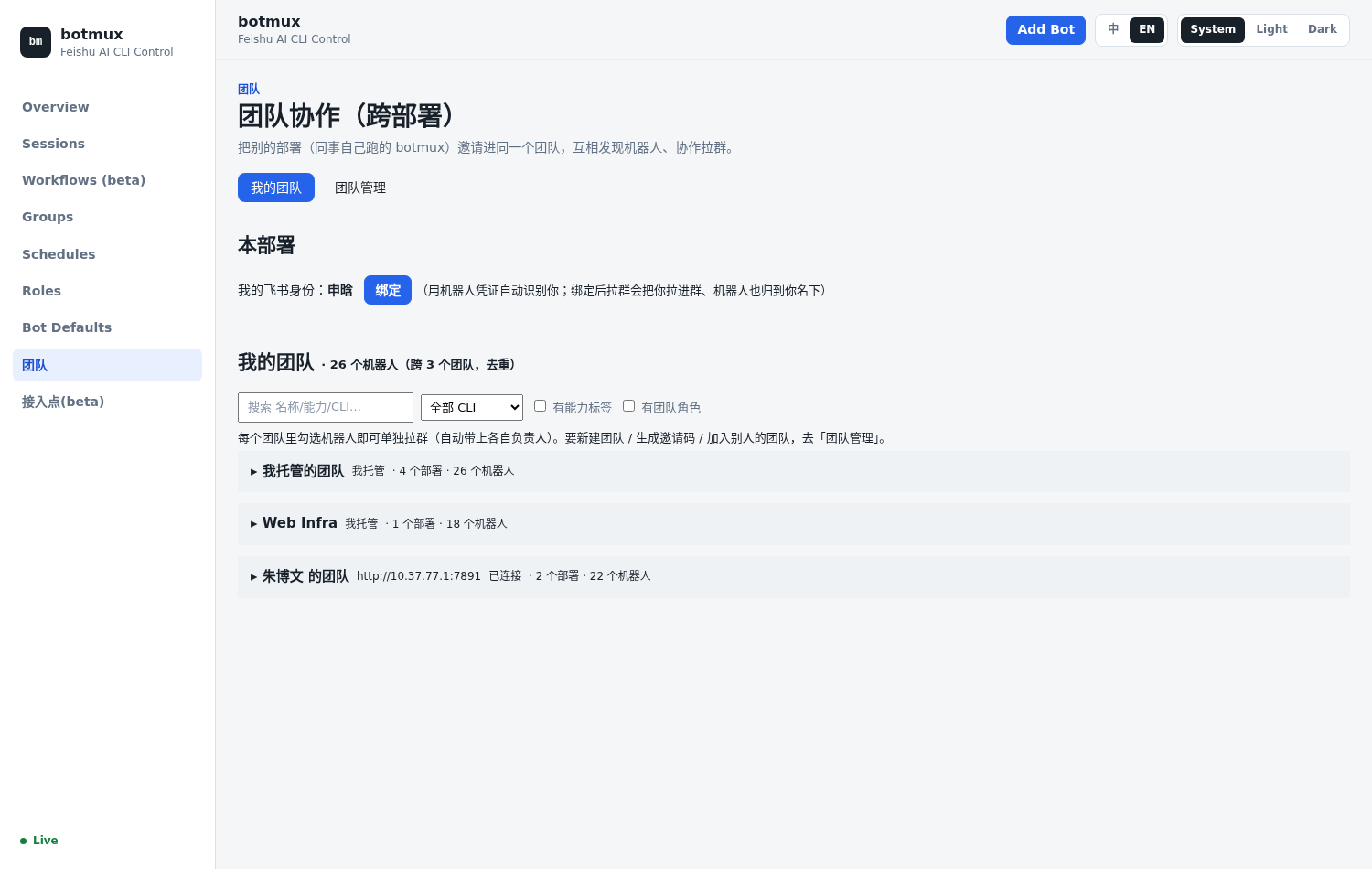
- Bind identity: use the bot credentials to automatically identify your Lark identity; after binding, creating a group will add you to the group, and the bots will be attributed to you.
- Team roster: aggregates all bots from this deployment + any joined teams (possibly across deployments), searchable and filterable by name / capability / CLI, and annotates who has a capability tag / default role (roles are read-only view here; do editing on the Bot Config page).
- Cross-deployment group creation: just check the bots in any team to create a group in one click, automatically bringing along each one's owner — a single group gathering different CLIs from different colleagues' deployments to collaborate.
- Team management: creating a team, generating an invite code, and joining someone else's team are all on the "Team Management" subpage.
Suitable for multi-person / multi-machine collaboration: everyone runs their own botmux deployment, discovers each other's bots through a team federation, and collaborates in the same Lark group.
Role Switch
⚠️ Advanced feature — requires deploying a "role library" first, and currently supports Claude Code only. Deployment steps are in the role-system deploy runbook; the below covers how end users use it once deployed.
Unlike /role above (a single persona, overridable per group), role switch gives one bot multiple full roles, each with its own persona and independent memory — switch to "After-sales" and it carries the after-sales persona plus memory accumulated only for after-sales; switch to "PM" and it's a whole different set. Roles take effect per topic; new topics start from the default role.
How to use it (pure natural language, no command to memorize)
The user side is all natural language — under the hood the model calls botmux role switch <role-dir> (hard-validated by the daemon to stay inside the role library); you neither need to nor should type that command by hand.
Key points
- Private + shared (a protocol-layer convention, NOT daemon-enforced isolation): role listing and "switch to X" visibility are filtered by the role protocol (
_role-protocol.md) on the sender's open_id — shared roles plus roles under your ownusers/<your open_id>/are visible and switchable; others' private roles are, by protocol convention, not listed or switchable. ⚠️ This is protocol-layer behavior, not a security boundary: the daemon only hard-validates that the target directory stays inside the role-library root~/botmux-roles; it does NOT do per-sender directory-level ACL. If you need private roles as hard isolation, add OS-level permissions yourself — do not rely on this protocol convention as a security guarantee. - Independent memory: one memory bucket per role, shared across groups / topics — the same role gets better at its domain the more it's used.
- Context preserved: switching restarts the process with
--resume, so the prior conversation carries over, and the new role's persona and memory load automatically at the new session's start. - Distinct from
/cd: the slash command/cd <path>(see Slash Commands) is the general "change working directory and restart", any directory, owner operate permission; role switch stays inside the role library and is driven by the role protocol — they are not the same thing.
The former command name
botmux cdis nowbotmux role switch(the old name is kept as a fail-loud error hint and no longer performs a switch). When maintaining an existing deployment, remember to refresh the_role-protocol.mdin the role library to the new command name.