
Create a Session Group in One Step
/group <group name> (alias /g): automatically creates a new Lark group, invites you in, and transfers ownership to you, with the entire group serving as a single, independent CLI session (chat-scope). Great for spinning up a clean collaboration space dedicated to one project / task.
The bot replies with a card: "✅ Created group 'card race-condition bug' 👉
When the group name is empty, a timestamp is used as a fallback. After creation, no session is started automatically; enter the group and message the bot to start chatting.
Create a Group with Multiple Bots
Bots @-mentioned in the command are added into the new group together (the first @-mentioned bot is in charge of creating the group):
The reply lists "Bots in group: Claude, Codex". This makes the new group a natural multi-bot collaboration space — go in and @ whoever you want to do the work.
Bootstrap a Role Profile
If you keep reusable collaboration personas in a role profile, add --role-profile <profile> when creating the group:
After the group is created, the creator bot applies its own entry directly, then posts @Codex /role profile apply collab-main --quiet for the other bots inside the new group. Each bot applies only its own local profile entry, which materializes as that bot's this-group Role. Missing entries are safe and fall back to the default role.
Create a Group in the Dashboard
If you'd rather not use commands, the Groups panel in botmux dashboard can also create groups visually: pull specified bots into the group, automatically transfer ownership, and @-notify. The new-group dialog can select a Role Profile; an existing group's "Apply Profile" action opens Role Profiles with that group preselected as the Apply target. You can also disband a group / have a bot leave a group (associated sessions are cleaned up automatically). See Dashboard Control Panel.
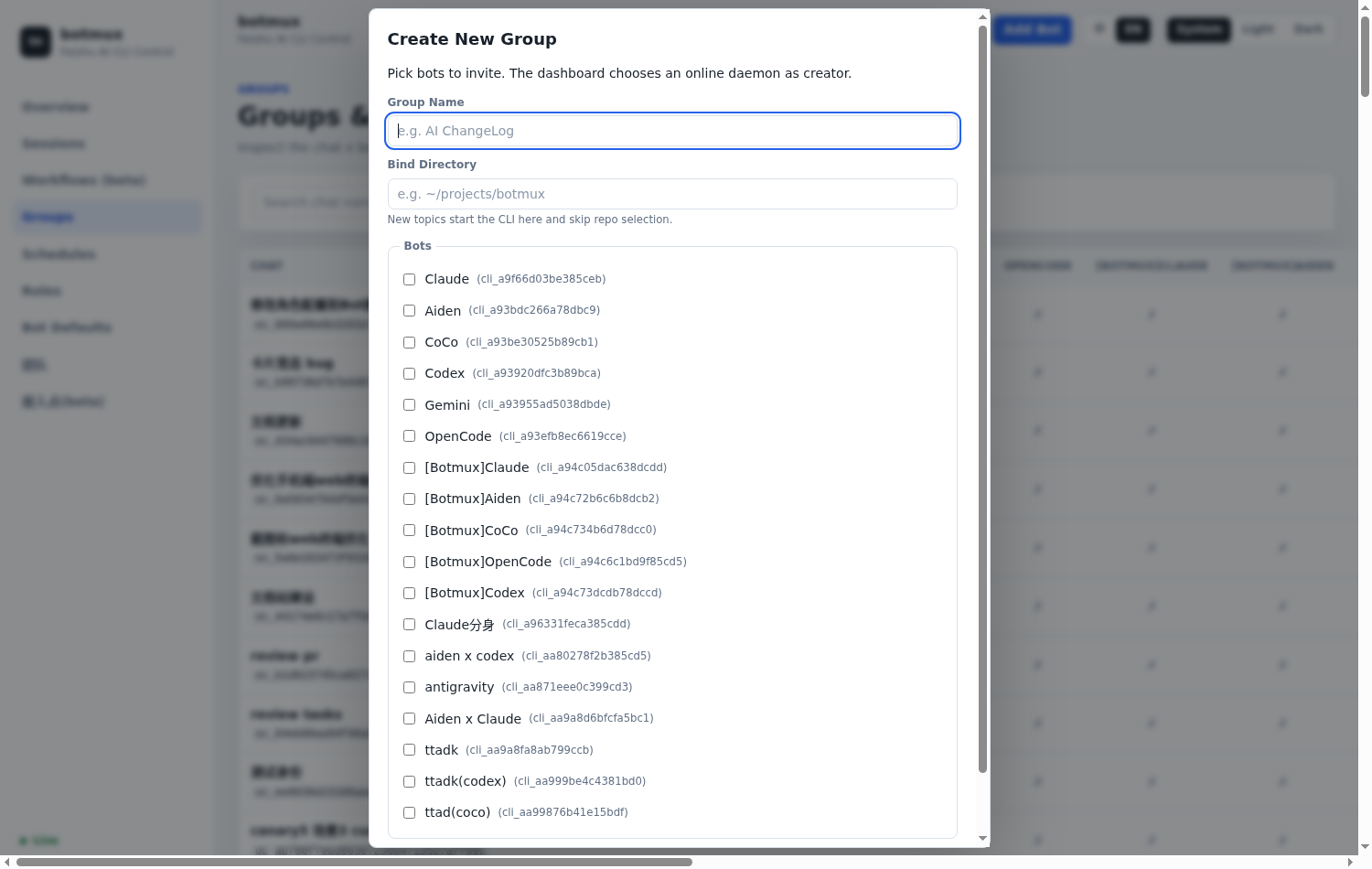
"New Group": fill in the group name, bind a directory, and check the bots to pull into the group
DM-created session groups: change the tag on close
With p2pMode: "group", set Tag after closing under Dashboard Bot configuration → Sessions → Session mode → DM dedicated group → Session-group tag, for example “Closed”. Leave it empty to retain the current behavior. The equivalent per-bot bots.json configuration is:
After a clean /close (including the close-card action that uses this command), the chat is added to the configured destination and then removed from its original automatic group. The destination is reused or created by name. Neither group itself, other chats, nor chat history are deleted. Names are trimmed and limited to 60 Unicode codepoints.
- Supports personal
feed-groupmode only, using the user who created the session group and their existing tag authorization. Use/login tagsif authorization is missing. - Failed closes, unclean residuals,
/stop, crashes, background cleanup, and ordinary groups/topics do not move tags. - Migration runs in the background with a separate failure notification. Failed adds keep the original association; identical source and destination IDs are never removed.
- Resuming does not move the chat back. Clearing
closedNamedisables this behavior without bulk-migrating existing chats.
Disband a dedicated session group: /dismiss
Send /dismiss at the top level of a dedicated session group, review the impact notice, then send the returned confirmation command. Only its initiating human with Bot operator permission may confirm. The Bot must own the group or be its creator with im:chat:operate_as_owner.
The command safely closes the session before disbanding the group, then sends a private receipt. Other active sessions, failed closure or runtime residuals prevent deletion. If deletion fails, the session stays closed; send /dismiss again to confirm a retry. DMs, ordinary groups, subtopics and adopted sessions are excluded.
All group members are affected; resuming cannot recreate the original group. Code and worktrees are kept, and closed-tag migration is skipped. Use /close to keep the group and change its tag.