
Global Settings (config.json)
Some switches apply to the whole machine, not to one bot: when to auto-update, whether to clean up idle sessions on a schedule, who gets pinged when the host is overloaded. They live on the Dashboard's "Global Settings" page. Saving writes them to ~/.botmux/config.json, shared by every bot on this machine.
To change a single bot (working directory, admins, CLI, and so on), see bots.json. For environment variables used inside sessions, see Environment Variables.
Where to change them
- Open the Dashboard and click "Global Settings" in the left nav.
- The page has its own table of contents with three modules: General, Meeting Agent, and System & Maintenance. Click an entry to jump to it.
- Toggles save as soon as you flip them; text inputs (group prefix, proxy, callback URL, and so on) need their "Save" button. Most settings need no restart.
You can also edit ~/.botmux/config.json directly. Every item below lists its JSON field name for hand edits or backups. If "Allow tokenless read-only dashboard access" is on, visitors without a token can view but not change anything.
Quick reference
Auto update and auto restart
Want botmux to upgrade itself every day → turn on "System & Maintenance → Auto Maintenance → Auto update" and pick a time.
- Auto update (off by default): once a day at the chosen time (default 04:00, Beijing time) it checks for a new version and, if there is one, updates using the way you installed botmux (npm / pnpm / Bun global install). It installs only, no restart; the new version takes effect on the next restart.
- Auto restart (off by default, requires auto update): restarts only when this run actually installed a newer version. No new version, no restart. It has no schedule of its own.
- If any session is busy at that time, the whole run is skipped and moves to the next day, so working sessions are never interrupted.
- Auto update is unavailable when running from source (local dev install); the page says so.
After an intentional restart (manual restart, restart after auto update, rollback), the first bot DMs its first administrator a restart report by default. To turn that off, put "maintenance": { "notifyOnRestart": false } in config.json (there is no toggle on the page for it).
Auto-upgrading Codex inside sessions
Location: General → Experimental → Automatically upgrade session Codex versions. Experimental, off by default.
When on and a newer Codex is installed on the machine, running Codex sessions switch to the new process when it is safe and idle, then resume the same thread without starting an extra turn. Sessions with background work, or whose state can't be confirmed safe, wait. The toggle takes effect immediately.
Scheduled cleanup of idle sessions
Lots of open sessions eat memory. Want sessions nobody has used for a while to close on their own → turn on "General → Scheduled tasks → Auto-clean idle sessions on a schedule".
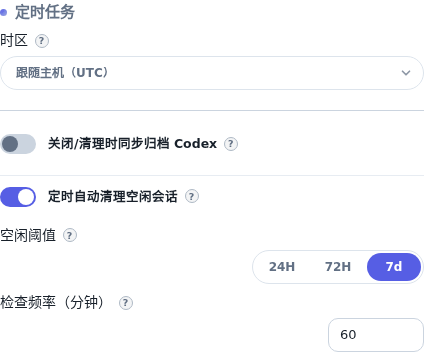
Override this switch for one Bot under Dashboard “Bot Config → Sessions → Codex native archive” (follow global, on or off; shown for Codex bots only), or with /config set archiveCodex on or /config set archiveCodex off; /config unset archiveCodex restores inheritance. The corresponding Bot entry in bots.json also accepts "archiveCodex": true or false. Command changes apply to subsequent closes and cleanup immediately; an in-progress close keeps its initial value. Previously archived sessions can still be restored.
It uses the same rules as the manual "Clean idle" button on the Session Control page, just unattended. Only truly idle sessions are closed: sessions that are running, locked, waiting on a repo pick, or carrying an alert for you are left alone.
Host overload alert
When the host is overloaded, new sessions tend to time out during cold start. Want to know right away → turn on "General → Host overload alert".
- Turn on "Enable overload alert".
- Pick a notification Bot (one per machine is enough). The page shows the recipient: that Bot's first administrator.
- Adjust the two thresholds if needed.
That Bot then checks host load and memory every 30 seconds. It DMs the admin once when the host enters overload and once when it recovers. Bouncing in and out won't spam you (two "entered" alerts are at least 15 minutes apart).
The recovery lines are built in (load = cores × 1.0, memory 85%). If you set an enter line at or below its recovery line, the recovery line is pushed down to 95% of the enter line to avoid flapping.
Notes:
- The notification Bot must be able to send Feishu messages (not an API-only bot) and must have an administrator.
- Environment variables can tune it too:
BOTMUX_OVERLOAD_ENTER_LOAD_RATIO,BOTMUX_OVERLOAD_EXIT_LOAD_RATIO,BOTMUX_OVERLOAD_ENTER_MEM_FRAC,BOTMUX_OVERLOAD_EXIT_MEM_FRAC,BOTMUX_OVERLOAD_MIN_REALERT_MS. They take priority over the page. BOTMUX_OVERLOAD_ALERT=0turns the feature off completely, whatever the page says.
Memory protection (check before starting a session)
This is on by default and usually needs no attention. Before starting or resuming a session process, botmux checks memory. If:
- available memory is below the reserve (default 25% of total memory, capped at 4 GiB), or
- memory pressure (Linux PSI
full avg10) reaches the limit (default 20%),
it doesn't start the process and replies in the session asking you to free memory and resend. When the shortfall is small, it first suspends a few idle sessions to free memory and tries once more.
There are no toggles for this on the page. Use the CLI to view and change it:
These map to the worker field in config.json (memoryAdmissionEnabled, minAvailableMemoryBytes, maxMemoryFullAvg10, sessionMemoryMaxBytes). They don't change how many sessions each bot keeps resident (that's maxLiveWorkers in bots.json).
Scheduled task timezone
Location: General → Scheduled tasks → Timezone. Default: follow host.
Scheduled tasks fire, parse phrases like "tomorrow 9:00", and display times on cards and the Dashboard in this timezone. If the server is abroad but you're in Beijing, pick Asia/Shanghai.
Priority (earlier wins):
- Environment variable
BOTMUX_SCHEDULE_TIMEZONE - Timezone chosen on the page (
scheduleTimeZone) - Host system timezone
An invalid timezone name is skipped and the next level is used. The auto-update time is not affected; it always uses Beijing time.
Group creation and repo picker
/ggroup name prefix (General → Group Creation,groupNamePrefix): groups created with/groupor/gget this text in front of their name, e.g.AI-chat·. Other ways of creating groups don't. Clear it and save to turn it off; takes effect within about 2 seconds. See Create a session group.- Repo picker card mode (General → Repo Picker,
repoPickerMode):all(default, repos plus their worktrees) orrepos(main repos only). Withrepos,/repo <worktree path>still takes you into a worktree. - Worktree directory (General → Worktrees,
worktreeRoot): botmux creates new worktrees under this directory, e.g./data00/worktrees. Useful when the system disk is small and a larger data disk is mounted. Worktrees are laid out under it by the main repo's own path: a worktree of/root/iserver/botmuxbecomes/data00/worktrees/root/iserver/botmux-wt-…, so repos with the same name in different places don't collide. Use an absolute path (may start with~/) to an existing, writable directory. Only affects worktrees created from then on; existing ones stay where they are and keep working, also if you change the directory again later. If the directory later goes missing or stops being writable (e.g. the data disk isn't mounted, or was remounted read-only), new worktrees are created next to the main repo instead and a warning is logged. Clear it and save to go back to creating them next to the main repo; takes effect within about 2 seconds.
Network and access
For the web terminal itself, see Web Terminal.
How built-in skills reach the CLI
botmux's built-in skills (sending messages, creating schedules, and so on) need to be handed to the CLI. For CLIs that only have a global skills directory, such as Codex and OpenCode, there are three modes (skills.builtinInjection):
This is the machine-wide default. Change it with botmux skills injection [global|prompt|off|unset]; no argument shows the current value. If a bot sets skillInjection in bots.json, the bot's own value wins. See Skill.
Separate sessions for each person in a group (XPI, experimental)
Off by default. While it's off, everyone in a group shares one session: a message someone sends while the bot is busy is queued as usual and handled after the current task.
When on, each human in the same group gets their own CLI context and git worktree, so people can work in parallel without interrupting each other:
- Messages are still public in the group; each person's just go to their own "lane".
- Quoting a task someone else is running goes through a suggestion / confirmation flow instead of jumping into their task; other messages continue in the sender's own lane.
- Send
/lane statusin a topic to see your lane's branch, worktree, uncommitted changes and unpushed commits;/lane closecloses your lane safely (it refuses while a task is running or files are uncommitted, pushes unpublished commits before reclaiming, and never merges or deletes branches on its own). - When an agent messages another bot, it has to say whether that's a separate task or input for the current one with
botmux send --as independent|suggestion.
To turn it on: Dashboard Global Settings → General → Experimental → Cross-principal interruption isolation (XPI), which is dashboard.crossPrincipalInterruption: true in config.json. It applies to every bot on this machine and takes effect from the next message, no restart needed. To force it on or off for a single daemon process, set BOTMUX_XPI_ENABLED=true / false in its environment; that wins over the Dashboard switch.
Keep it off when people need to share one context and set of files; turn it on when their tasks are fully independent.
FAQ
Do I need to restart after editing config.json?
Most toggles on the page take effect as soon as you save. After hand-editing the file, check the values on the page; when in doubt, run botmux restart.
Auto update is on, so why didn't it update? Possible reasons: a session was busy at that time (moved to the next day); botmux wasn't running at that time and came back more than an hour later (skipped for that day); you're already on the latest version; this is a local dev install or an unsupported install layout (shown next to the "Auto Maintenance" title).
I never get overload alerts?
Check that a notification Bot is selected, that Bot is online, and it has an administrator. Also check whether BOTMUX_OVERLOAD_ALERT=0 is set.
Should backups include config.json?
Yes. When moving machines, take bots.json, .env, config.json, and data/ together. See Environment Variables.