
Agent Workbench
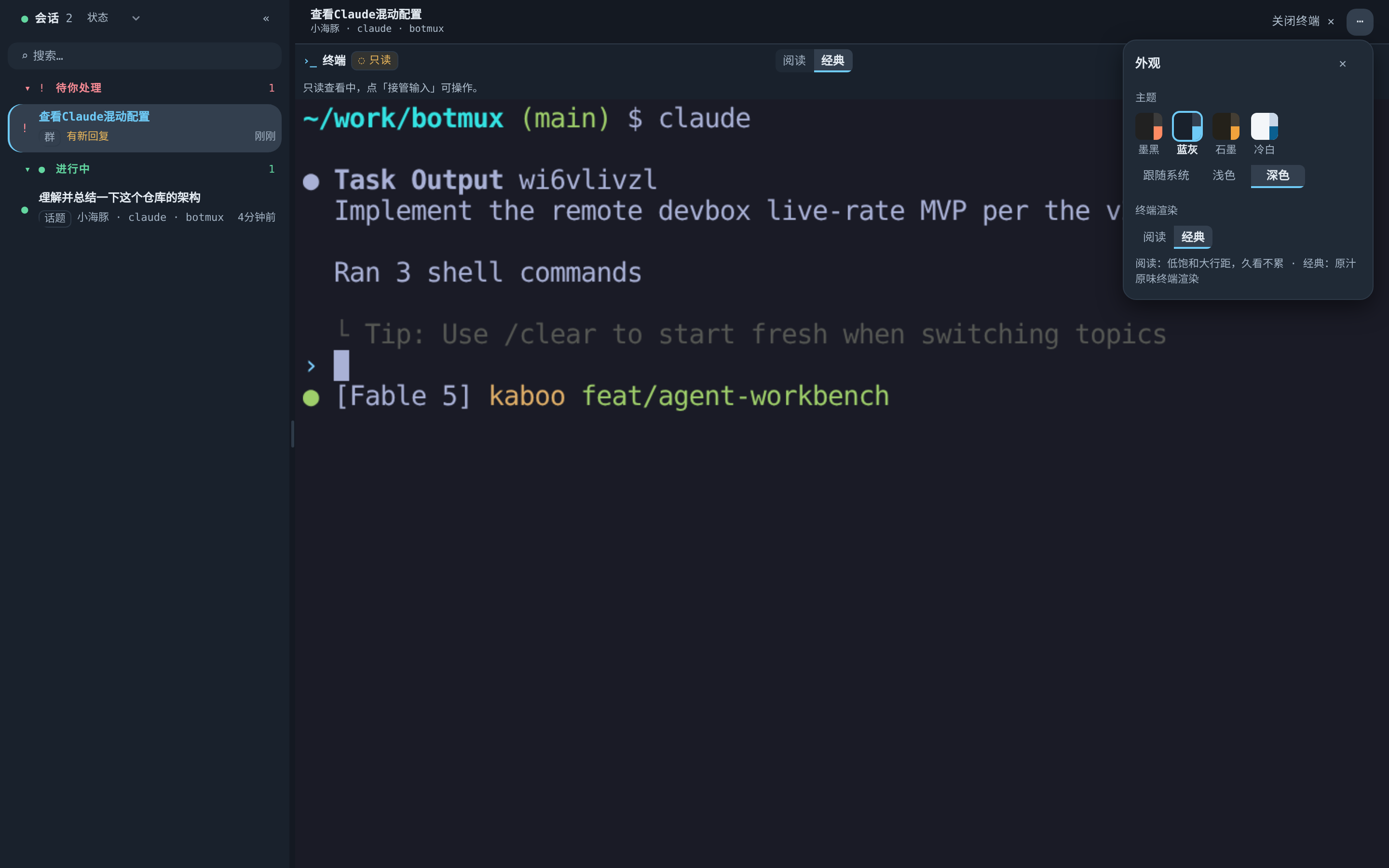
The Workbench (shown as 驾驶舱, "Cockpit", in the Dashboard) is the part of the Dashboard built for keeping an eye on many AI sessions at once: the left side lists every session on this machine, the right side shows the terminal of the one you pick. You can see at a glance which session just finished and which one is stuck waiting for you.
The "Open Workbench" button on the Lark /dashboard card and the 工作台: … link printed by botmux dashboard both open it.
Good for:
- Running several topics at once and wanting to know who's done and who's waiting on you, without digging through Lark groups.
- Watching a session's live terminal, and typing into it when needed.
- A quick progress check from your phone.
How to open it
When opened from a direct entry like the card, the command line, or the standing link, the Workbench fills the whole screen without the Dashboard sidebar.
The session list
By default the list is split into three groups by status:
Common reasons a session lands in "Needs you":
Opening a session counts as seeing it, and "New reply" goes away.
Everyday actions:
- Change grouping: the dropdown at the top of the list offers status, bot, location, type, CLI, last active, and Worktree. Your choice is remembered.
- Search: press
/to jump to the search box. - Move with the keyboard:
j/kor the arrow keys. - Resize / collapse the list: drag the bar on the list's right edge, or click
«to collapse it.
Each row has a few quick buttons on the right:
Watch the terminal, type into it
Click "Terminal" on a row and the right side shows that session's live terminal, the same view as the Web terminal.
- It starts read-only: you can watch without typing anything by accident.
- To type: click "接管输入" (Take over input) in the terminal title bar. The title bar then shows when your control expires; click "释放输入" (Release input) when you're done.
- Some identities aren't allowed to take over. In that case the button isn't shown and the hint says the current identity can't take over input.
- If you signed in through the central platform as the owner, you can type as soon as the terminal opens (the hint says so); no takeover needed.
- "新标签页打开" (Open in new tab) opens the terminal in its own browser tab.
- "关闭终端 ✕" (Close terminal) hides the terminal pane.
To chat with the AI the way you do in Lark, click "Chat" on the row and continue in Lark. The Workbench doesn't duplicate a chat box.
On your phone
On narrow screens (like a phone), the Workbench turns into one page at a time:
- You first see the session list.
- Tap a session to open its detail page. The top bar switches between "终端" (Terminal) and "信息" (Info); if the session registered a web preview with
botmux preview <port>, there's also "网页" (Web). - Tap "‹ 会话列表" (Session list) at the top left to go back.
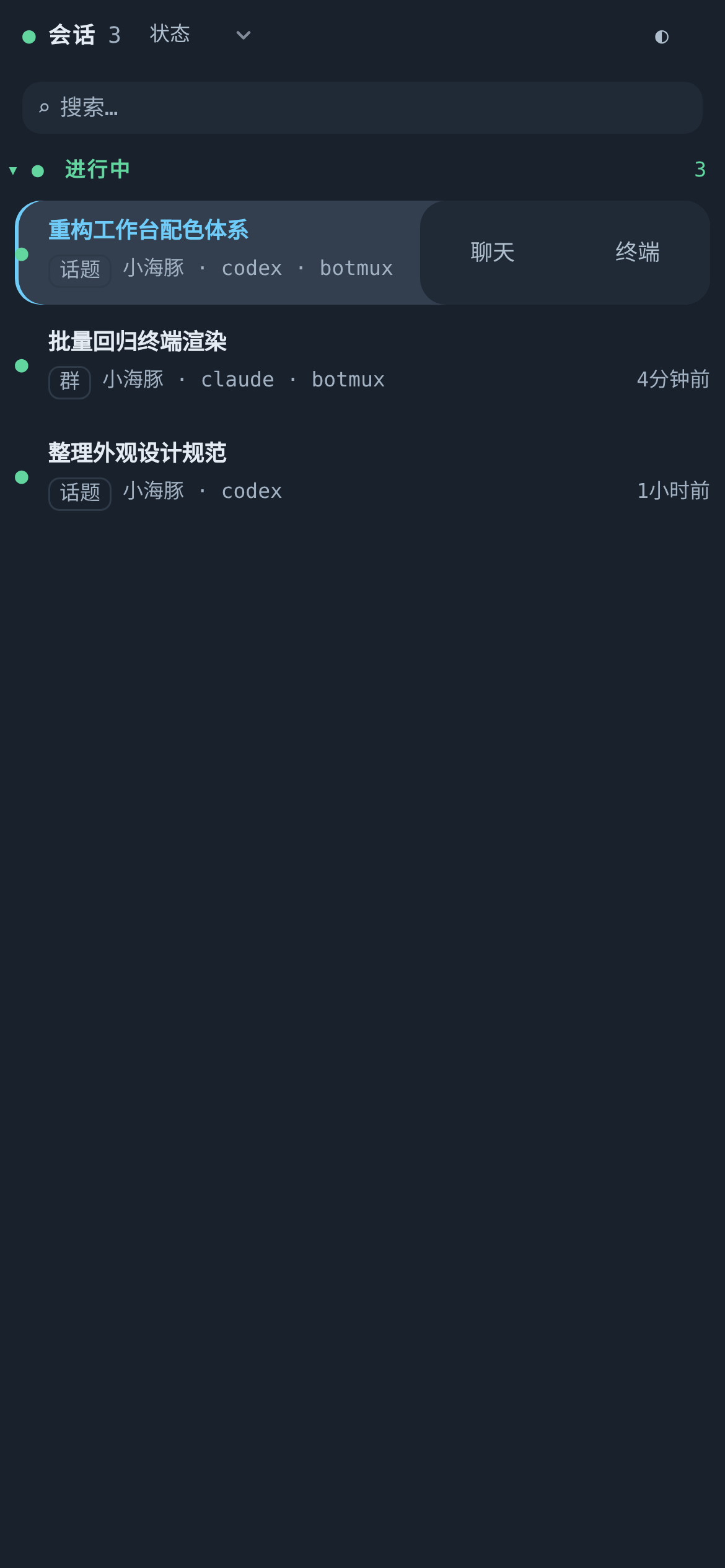
On the phone the terminal is a read-only view by default; to type, use a computer (a few identities can type on the phone too, and the terminal hint says so).
To put the Workbench on your home screen: open it in your phone's browser and choose "Add to Home Screen". The icon then opens straight into the session list.
Session dock (slim view)
The session dock is a narrow version of the Workbench for tight spots such as a sidebar. Its address is <your Dashboard address>/workbench/dock. It has only the session list plus a few buttons: open the full Workbench, open the chat, terminal link, and web link. The terminal and web preview are viewed in the full Workbench or a new tab.
Appearance
On desktop click ⋯ at the top right → "Appearance"; on the phone tap ◐ at the top of the list.
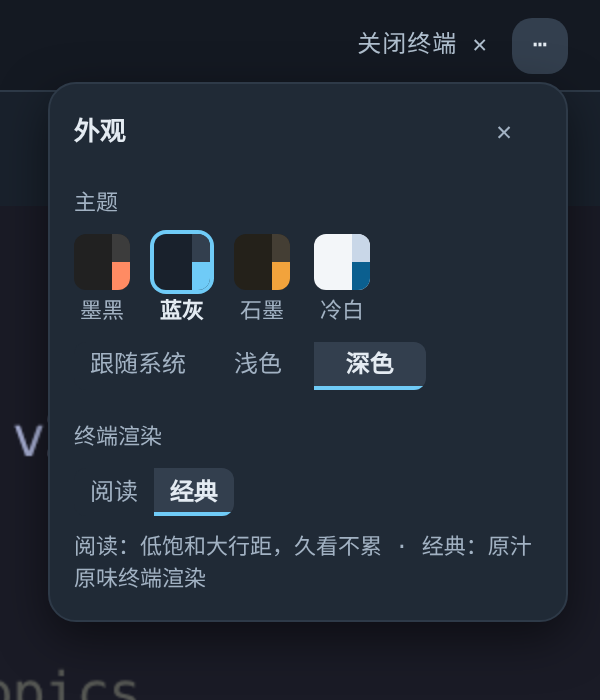
The default is Slate + Classic. The terminal title bar also has a Reader / Classic switch close at hand.
Appearance is saved in the current browser, so a different device or browser needs its own choice. The first time you open the Workbench, light/dark follows your Dashboard setting.
A long-term entry: the standing link
For a Workbench link you can bookmark and keep using:
- Sign in to the Dashboard with the link printed by
botmux dashboard(this is the local admin identity). - Open the Workbench and click
⋯→ "Standing link" (on the phone it's in the◐panel). - Click "Copy" and save it as a browser bookmark.
Things to know:
- "Standing link" only shows for the local admin. Identities signed in through the central platform or Lark single sign-on don't see it.
- This link, like the link behind the card's "Open Workbench" button, carries the Dashboard's long-lived token: it doesn't expire, survives
botmux restart, and can be opened again and again on desktop and phone. - If you suspect it leaked, run
botmux dashboard rotateon the machine. Once the token changes, every old link (including card buttons already sent) stops working immediately; just fetch the standing link again. - If the small print under the card says the Dashboard credential is unavailable, that button link carries no sign-in and you'll need to log in after it opens.
Phone won't load it? Use the self-check page
If the Workbench is blank on your phone or the terminal never shows up, while your computer works fine, open this in the phone's browser:
The page needs no sign-in. It runs a series of checks on its own, waiting at most 8 seconds for each:
When it's done, take a screenshot and send it to the bot or your maintainer; it shows whether the problem is the network, the sign-in, or a stale cache. The page never shows any token or secret, so the screenshot is safe to share.
To check one specific session, add ?session=<session ID> to the address.
FAQ
The phone says the terminal's live connection couldn't be established?
Lark's in-app browser on iOS often blocks unencrypted live connections. Tap ⋯ at the top right in Lark, choose "Open in browser", and try in the system browser, or look on a computer.
No "Locate" or "Jump" on a row? Both only appear for topic sessions, and "Jump" also needs the bot to know the original topic link. Group and DM sessions only have "Chat" and "Terminal".
The selected session says "会话不存在" (session not found)? It has ended or been cleaned up. Pick another one from the list.
Why don't I see "Standing link"?
Only the local admin, signed in with the link from botmux dashboard (or the card button), sees it.